> ## Documentation Index
> Fetch the complete documentation index at: https://subtext.fullstory.com.pgm.c5nprx.cc/docs/llms.txt
> Use this file to discover all available pages before exploring further.
# Linear and Subtext: Triage from the Real Session
> Have Linear's agent triage incoming issues automatically — opening the Subtext session, diagnosing the UX flow, and posting a comment backed by real session evidence.
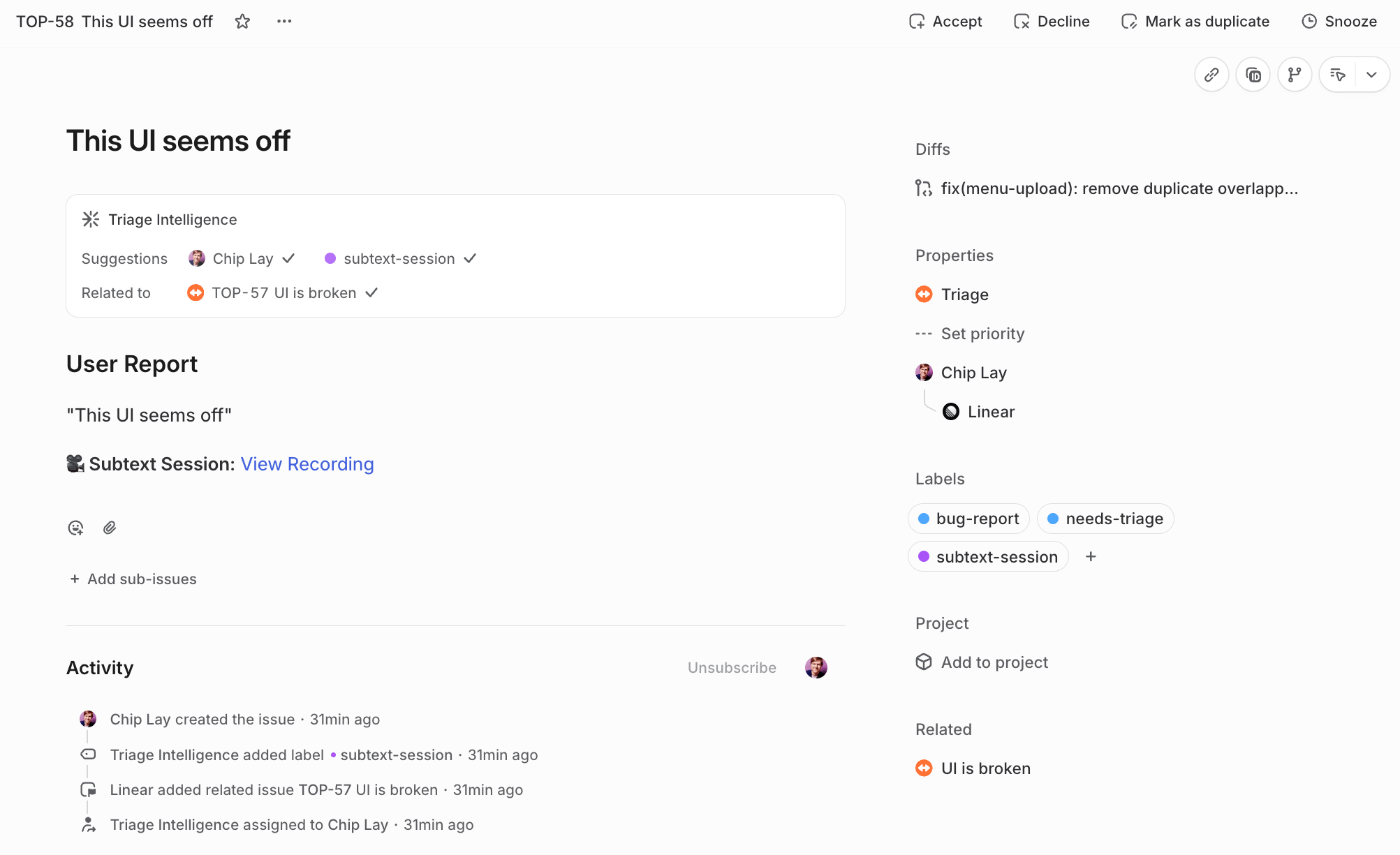
Linear tells you an issue arrived. It can't tell you what actually happened to the person who filed it. Subtext can. When an issue enters triage carrying a Fullstory or Subtext session URL, a Linear **Loop** runs the Linear agent to open the session with the Subtext MCP, inspect the UX flow, and post a triage comment backed by real session evidence — not a paraphrase of the issue text. Linear routes the work; Subtext diagnoses it.
 ## What you need
* A Linear **Business or Enterprise** plan — Loops are available on those plans and draw from your workspace's AI credits
* A team with **Triage** enabled
* A workspace admin to allow the Subtext MCP server
* The hosted **Subtext MCP** endpoint (below)
Subtext's MCP server is hosted, so there is nothing to run yourself: paste `https://api.fullstory.com.pgm.c5nprx.cc/mcp/subtext` into Linear's **Custom URL…** field. For an unattended loop, authenticate with **Authentication headers** — `Authorization: Bearer YOUR_SUBTEXT_API_KEY`, using a key from your Fullstory settings. OAuth (sign in and authorize) also works and is convenient for interactive use, but a headless loop is best served by a scoped API key. See [Manual install](/docs/install/manual) for details. If you haven't set up Subtext capture yet, start with [Install the capture snippet](/docs/install/overview).
[Loops](https://linear.app/docs/loops) are Linear's background agent workflows: each one triggers on a schedule or when an issue matches a set of conditions, then runs the Linear agent with the instructions and tools you define. This recipe uses an issue-based Loop that fires when an issue enters a team's triage queue. Loops live under the **Loops** tab on a team, and under the **Loops** group in the workspace sidebar. Linear's built-in [Triage Intelligence](https://linear.app/docs/triage-intelligence) (property suggestions and duplicate detection) is a separate feature and isn't required for this recipe.
## Set it up
1. Go to **Team settings → Triage**.
2. Turn **Triage** on if it isn't already.
1. In the sidebar, click your team, then open its **Loops** tab. (For a workspace-wide loop, click **Loops** under the workspace group instead.)
2. Click **New loop**.
3. For the trigger, choose the issue-based option — an issue being created or updated and meeting conditions — and set the condition so the loop fires when an issue enters this team's triage queue.
1. In the loop's **Tools** section, click **+ Add tool**.
2. Pick **subtext** if it's already connected in your workspace. Otherwise choose **+ Custom URL…**, paste your Subtext MCP endpoint into the **Add custom MCP server** dialog, and authenticate — for an unattended loop, **Authentication headers** with `Authorization: Bearer YOUR_SUBTEXT_API_KEY` is the robust choice; OAuth works too.
3. A tool has to be allowed for the workspace before a loop can use it — workspace admins manage the approved set under **Workspace settings → Security**. If the server can't be added, an admin needs to enable MCP and allow it there first.
Connecting the server under **Settings → Agent personalization** makes it available to the Linear agent in your own interactive sessions, but a loop declares its tools explicitly in its own **Tools** section — an unattended run doesn't inherit your personal connections.
Paste this as the loop's instructions:
```text theme={null}
When an issue enters triage, check the description and comments for a Fullstory or Subtext session URL.
If a session URL is present, use the Subtext tools to inspect the session before taking action.
Analyze the session and summarize:
- what the user was trying to do
- what actually happened
- likely UX or product root cause
- concrete evidence from the session, such as UI state changes, errors, or network outcomes
- reproduction clues
- whether the action appeared to succeed or fail
- recommended next triage action
Post the result as a comment on the issue.
If no session can be opened, say so explicitly.
If no session URL is present, do nothing.
```
Resist pasting a Subtext tool catalog into the instructions — the MCP tools are self-describing, and a hardcoded tool list goes stale as the catalog evolves. The instructions above name the behavior, not the tools.
Ask the loop to post comments in a consistent structure by appending this to its instructions:
```text theme={null}
Session triage summary
- User goal: …
- Observed behavior: …
- Likely root cause: …
- Evidence from session: …
- Reproduction clues: …
- Outcome: success / failure / unclear
- Recommended next step: …
```
The loop's instructions govern its unattended runs. To make the Linear agent behave the same way when you work with it directly — in chat or on a mention — add matching guidance under **Settings → Agent personalization**:
```text theme={null}
Always use the Subtext tools when a Fullstory or Subtext session URL is present on an issue. Prefer evidence from the session over speculation. Include concrete UI observations and network outcomes when available.
```
1. Create a new issue in the team's triage queue.
2. Put a real Fullstory or Subtext session URL in the description.
3. Wait for the loop to run, then open the loop and select its **Run history**.
You've wired it correctly when the run history shows Subtext tool calls such as `review-open` and `review-summary`. Those calls confirm the loop is inspecting the session itself, not just summarizing the issue text.
## What you need
* A Linear **Business or Enterprise** plan — Loops are available on those plans and draw from your workspace's AI credits
* A team with **Triage** enabled
* A workspace admin to allow the Subtext MCP server
* The hosted **Subtext MCP** endpoint (below)
Subtext's MCP server is hosted, so there is nothing to run yourself: paste `https://api.fullstory.com.pgm.c5nprx.cc/mcp/subtext` into Linear's **Custom URL…** field. For an unattended loop, authenticate with **Authentication headers** — `Authorization: Bearer YOUR_SUBTEXT_API_KEY`, using a key from your Fullstory settings. OAuth (sign in and authorize) also works and is convenient for interactive use, but a headless loop is best served by a scoped API key. See [Manual install](/docs/install/manual) for details. If you haven't set up Subtext capture yet, start with [Install the capture snippet](/docs/install/overview).
[Loops](https://linear.app/docs/loops) are Linear's background agent workflows: each one triggers on a schedule or when an issue matches a set of conditions, then runs the Linear agent with the instructions and tools you define. This recipe uses an issue-based Loop that fires when an issue enters a team's triage queue. Loops live under the **Loops** tab on a team, and under the **Loops** group in the workspace sidebar. Linear's built-in [Triage Intelligence](https://linear.app/docs/triage-intelligence) (property suggestions and duplicate detection) is a separate feature and isn't required for this recipe.
## Set it up
1. Go to **Team settings → Triage**.
2. Turn **Triage** on if it isn't already.
1. In the sidebar, click your team, then open its **Loops** tab. (For a workspace-wide loop, click **Loops** under the workspace group instead.)
2. Click **New loop**.
3. For the trigger, choose the issue-based option — an issue being created or updated and meeting conditions — and set the condition so the loop fires when an issue enters this team's triage queue.
1. In the loop's **Tools** section, click **+ Add tool**.
2. Pick **subtext** if it's already connected in your workspace. Otherwise choose **+ Custom URL…**, paste your Subtext MCP endpoint into the **Add custom MCP server** dialog, and authenticate — for an unattended loop, **Authentication headers** with `Authorization: Bearer YOUR_SUBTEXT_API_KEY` is the robust choice; OAuth works too.
3. A tool has to be allowed for the workspace before a loop can use it — workspace admins manage the approved set under **Workspace settings → Security**. If the server can't be added, an admin needs to enable MCP and allow it there first.
Connecting the server under **Settings → Agent personalization** makes it available to the Linear agent in your own interactive sessions, but a loop declares its tools explicitly in its own **Tools** section — an unattended run doesn't inherit your personal connections.
Paste this as the loop's instructions:
```text theme={null}
When an issue enters triage, check the description and comments for a Fullstory or Subtext session URL.
If a session URL is present, use the Subtext tools to inspect the session before taking action.
Analyze the session and summarize:
- what the user was trying to do
- what actually happened
- likely UX or product root cause
- concrete evidence from the session, such as UI state changes, errors, or network outcomes
- reproduction clues
- whether the action appeared to succeed or fail
- recommended next triage action
Post the result as a comment on the issue.
If no session can be opened, say so explicitly.
If no session URL is present, do nothing.
```
Resist pasting a Subtext tool catalog into the instructions — the MCP tools are self-describing, and a hardcoded tool list goes stale as the catalog evolves. The instructions above name the behavior, not the tools.
Ask the loop to post comments in a consistent structure by appending this to its instructions:
```text theme={null}
Session triage summary
- User goal: …
- Observed behavior: …
- Likely root cause: …
- Evidence from session: …
- Reproduction clues: …
- Outcome: success / failure / unclear
- Recommended next step: …
```
The loop's instructions govern its unattended runs. To make the Linear agent behave the same way when you work with it directly — in chat or on a mention — add matching guidance under **Settings → Agent personalization**:
```text theme={null}
Always use the Subtext tools when a Fullstory or Subtext session URL is present on an issue. Prefer evidence from the session over speculation. Include concrete UI observations and network outcomes when available.
```
1. Create a new issue in the team's triage queue.
2. Put a real Fullstory or Subtext session URL in the description.
3. Wait for the loop to run, then open the loop and select its **Run history**.
You've wired it correctly when the run history shows Subtext tool calls such as `review-open` and `review-summary`. Those calls confirm the loop is inspecting the session itself, not just summarizing the issue text.
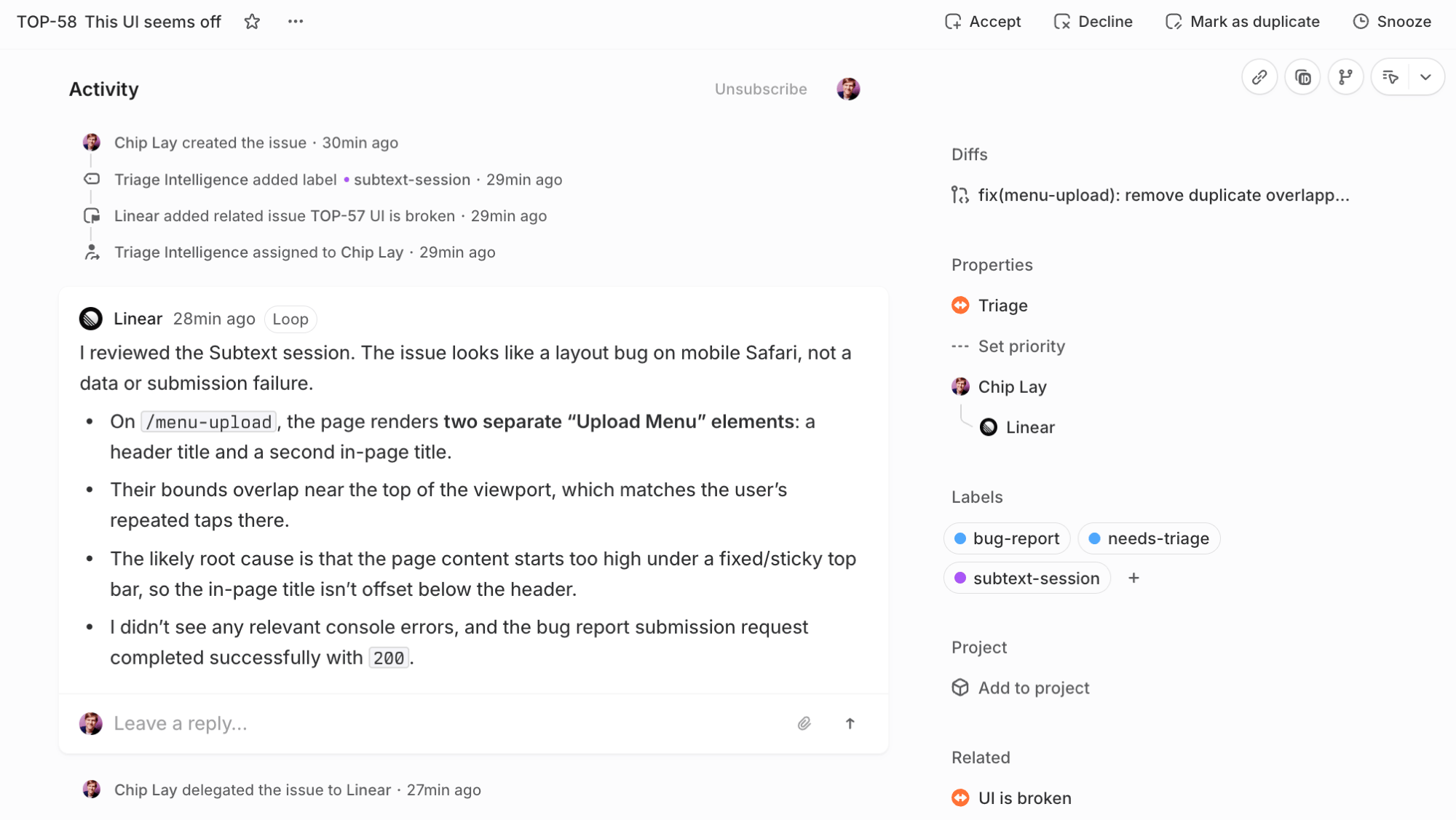 A triage comment grounded in the session gives the next engineer the diagnosis before they open the issue.
## Related
* [Session Review overview](/docs/session-review/overview) — what your agent does once a session is open.
* [Install the capture snippet](/docs/install/overview) — required before any session URL exists to attach.
A triage comment grounded in the session gives the next engineer the diagnosis before they open the issue.
## Related
* [Session Review overview](/docs/session-review/overview) — what your agent does once a session is open.
* [Install the capture snippet](/docs/install/overview) — required before any session URL exists to attach.