

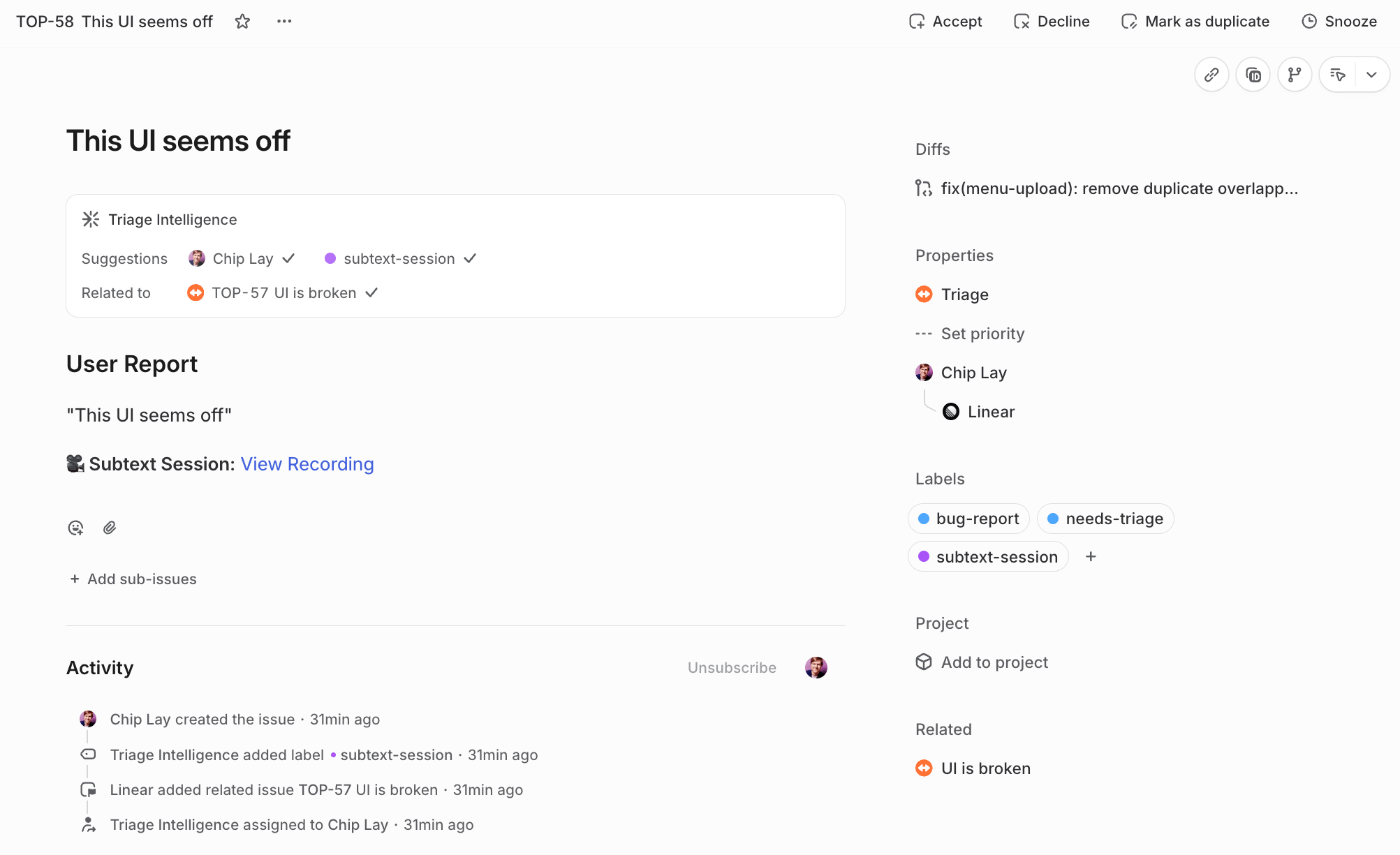
An issue enters triage carrying a Subtext session link — the loop's cue to investigate.
What you need
- A Linear Business or Enterprise plan — Loops are available on those plans and draw from your workspace’s AI credits
- A team with Triage enabled
- A workspace admin to allow the Subtext MCP server
- The hosted Subtext MCP endpoint (below)
Subtext’s MCP server is hosted, so there is nothing to run yourself: paste
https://api.fullstory.com.pgm.c5nprx.cc/mcp/subtext into Linear’s Custom URL… field. For an unattended loop, authenticate with Authentication headers — Authorization: Bearer YOUR_SUBTEXT_API_KEY, using a key from your Fullstory settings. OAuth (sign in and authorize) also works and is convenient for interactive use, but a headless loop is best served by a scoped API key. See Manual install for details. If you haven’t set up Subtext capture yet, start with Install the capture snippet.Loops are Linear’s background agent workflows: each one triggers on a schedule or when an issue matches a set of conditions, then runs the Linear agent with the instructions and tools you define. This recipe uses an issue-based Loop that fires when an issue enters a team’s triage queue. Loops live under the Loops tab on a team, and under the Loops group in the workspace sidebar. Linear’s built-in Triage Intelligence (property suggestions and duplicate detection) is a separate feature and isn’t required for this recipe.
Set it up
1
Enable Triage for the team
- Go to Team settings → Triage.
- Turn Triage on if it isn’t already.
2
Create the Loop
- In the sidebar, click your team, then open its Loops tab. (For a workspace-wide loop, click Loops under the workspace group instead.)
- Click New loop.
- For the trigger, choose the issue-based option — an issue being created or updated and meeting conditions — and set the condition so the loop fires when an issue enters this team’s triage queue.
3
Add the Subtext MCP as a tool
- In the loop’s Tools section, click + Add tool.
- Pick subtext if it’s already connected in your workspace. Otherwise choose + Custom URL…, paste your Subtext MCP endpoint into the Add custom MCP server dialog, and authenticate — for an unattended loop, Authentication headers with
Authorization: Bearer YOUR_SUBTEXT_API_KEYis the robust choice; OAuth works too. - A tool has to be allowed for the workspace before a loop can use it — workspace admins manage the approved set under Workspace settings → Security. If the server can’t be added, an admin needs to enable MCP and allow it there first.
Connecting the server under Settings → Agent personalization makes it available to the Linear agent in your own interactive sessions, but a loop declares its tools explicitly in its own Tools section — an unattended run doesn’t inherit your personal connections.
4
Add the loop's instructions
Paste this as the loop’s instructions:
5
Set a comment format
Ask the loop to post comments in a consistent structure by appending this to its instructions:
6
Keep interactive sessions consistent (optional)
The loop’s instructions govern its unattended runs. To make the Linear agent behave the same way when you work with it directly — in chat or on a mention — add matching guidance under Settings → Agent personalization:
7
Test it
- Create a new issue in the team’s triage queue.
- Put a real Fullstory or Subtext session URL in the description.
- Wait for the loop to run, then open the loop and select its Run history.
review-open and review-summary. Those calls confirm the loop is inspecting the session itself, not just summarizing the issue text.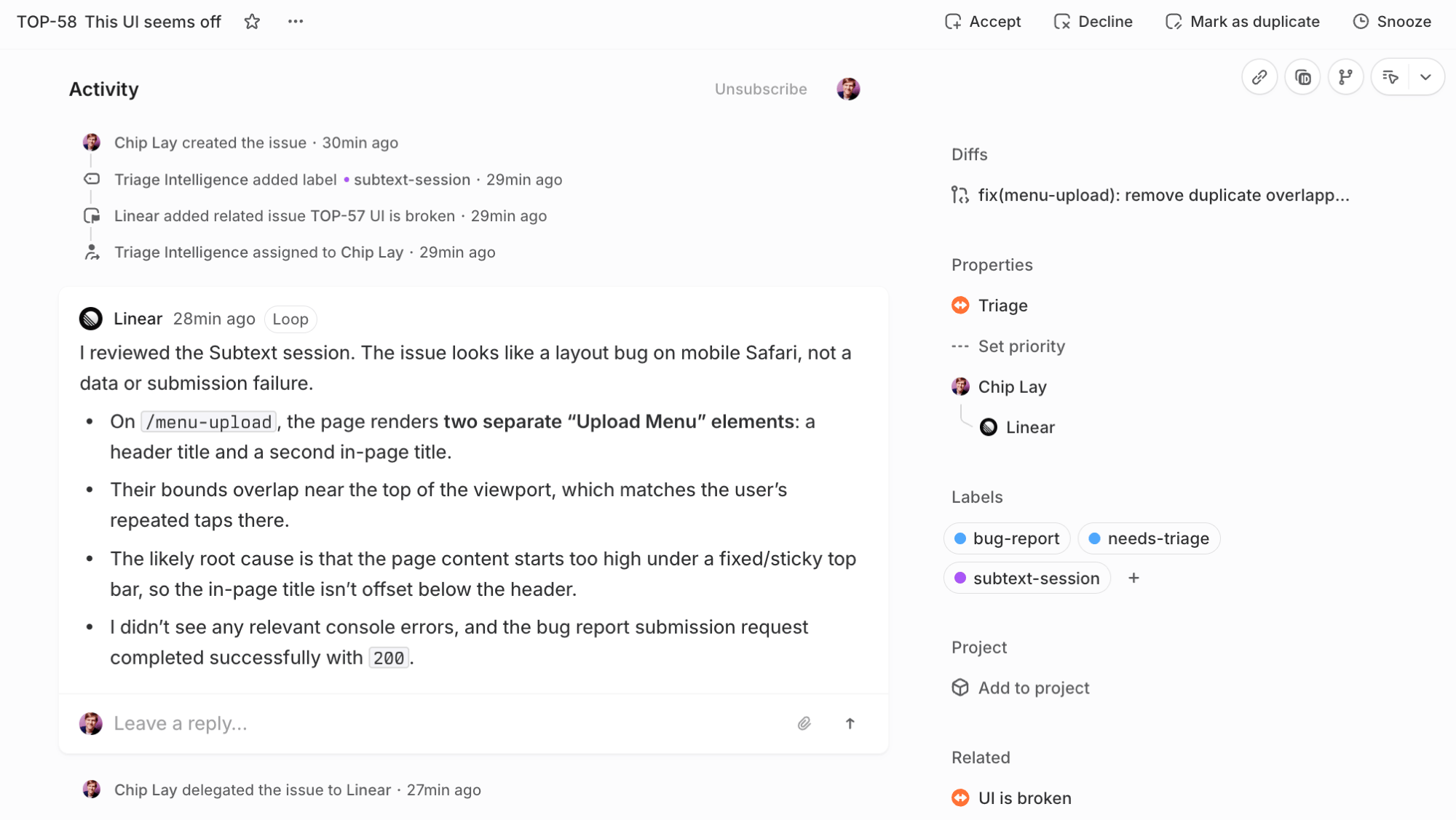
A completed run: the agent posts its findings as a Loop comment, grounded in the session.
Related
- Session Review overview — what your agent does once a session is open.
- Install the capture snippet — required before any session URL exists to attach.